At Ebay you can buya clone of the Arduino Nano for less than 3 Euro. Often it can be found under names like "Nano V3.0 ATmega328 CH340G" with the addition "for Arduino" or "Arduino compatible", for example here.
These clones don't use a FT232R as USB-Serial converter like the "original". The use a CH340G (as you can guess), so the drivers of the Arduino IDE won't work with the clone. You have to install a special driver on your own. You can download it here from the manufacturer. There are also drivers for MAC und Linux but I will only explain how to install the driver for Windows. At first, you have to extract the ZIP archive. If you use Windows 64bit, you have to copy the file "DRVSETUP64.exe" from the folder "DRVSETUP64" to its parent folder which contains (amongst others) the file "CH341SER.INF". Depending on your system you then have to run "SETUP.EXE" (32bit) or "DRVSETUP64.exe" (64bit). Click "INSTALL" and the driver is beeing installed. The Arduino board MUST NOT be connected to your computer, when you install the driver. Connect the Arduino AFTER the successful installation. Windows will then recognize it.
Friday, 31 October 2014

Sunday, 5 October 2014
C# - Program to solve a sudoku
(Deutsche Version) To solve a sudoku by hand is not that difficult. But after some time, a programmer wants to write a program which can also do this. The basic principle is pretty easy. The first empty bracket is filled (with a 1). Afterwards, the program checks whether the sudoku is still correct. If so, the next bracket is filled, if not, the previous bracket is counted up about 1. This is continued until the Sudoku is completely filled.
First, I created a window which shows a sudoku:
And the corresponding code:
This is now used to show the sudoku. The solver shows the actual sudoku and opens a new window for every found solution. MainWindow is empty, it is just used to start the program.
First, I created a window which shows a sudoku:
<Window x:Class="SudokuSolver.SudokuShowWindow"
        xmlns="http://schemas.microsoft.com/winfx/2006/xaml/presentation"
        xmlns:x="http://schemas.microsoft.com/winfx/2006/xaml"
        Title="SudokuShowWindow" Height="550" Width="550">
    <Grid Name="Grid1" HorizontalAlignment="Center" VerticalAlignment="Center">
        <Grid.ColumnDefinitions>
            <ColumnDefinition Width="50"></ColumnDefinition>
            <ColumnDefinition Width="50"></ColumnDefinition>
            <ColumnDefinition Width="50"></ColumnDefinition>
            <ColumnDefinition Width="50"></ColumnDefinition>
            <ColumnDefinition Width="50"></ColumnDefinition>
            <ColumnDefinition Width="50"></ColumnDefinition>
            <ColumnDefinition Width="50"></ColumnDefinition>
            <ColumnDefinition Width="50"></ColumnDefinition>
            <ColumnDefinition Width="50"></ColumnDefinition>
        </Grid.ColumnDefinitions>
        <Grid.RowDefinitions>
            <RowDefinition Height="50"></RowDefinition>
            <RowDefinition Height="50"></RowDefinition>
            <RowDefinition Height="50"></RowDefinition>
            <RowDefinition Height="50"></RowDefinition>
            <RowDefinition Height="50"></RowDefinition>
            <RowDefinition Height="50"></RowDefinition>
            <RowDefinition Height="50"></RowDefinition>
            <RowDefinition Height="50"></RowDefinition>
            <RowDefinition Height="50"></RowDefinition>
        </Grid.RowDefinitions>

    </Grid>
</Window>
And the corresponding code:
using System;
using System.Collections.Generic;
using System.Linq;
using System.Text;
using System.Threading.Tasks;
using System.Windows;
using System.Windows.Controls;
using System.Windows.Data;
using System.Windows.Documents;
using System.Windows.Input;
using System.Windows.Media;
using System.Windows.Media.Imaging;
using System.Windows.Shapes;

namespace SudokuSolver
{
    /// <summary>
   /// Interaktionslogik für SudokuShowWindow.xaml
    /// </summary>
    public partial class SudokuShowWindow : Window
    {
        public SudokuShowWindow()
        {
            InitializeComponent();
        }

        public int[] numbers;
        public TextBlock[] TextBlocks;

        public void refreshValues(int[] _numbers)
        {
            for (int i = 0; i < 9; i++)
            {
                for (int j = 0; j < 9; j++)
                {
                    if (_numbers[i * 9 + j] != numbers[i * 9 + j])
                    {

                        TextBlocks[i * 9 + j].Text = _numbers[i * 9 + j].ToString();
                    }
                }
            }
        }

        public static SudokuShowWindow newSudokuShowWindow(int[] numbers)
        {
            SudokuShowWindow window = new SudokuShowWindow();
            window.numbers = new int[81];
            window.TextBlocks = new TextBlock[81];
            for (int i = 0; i < 9; i++)
            {
                for (int j = 0; j < 9; j++)
                {
                    window.numbers[i * 9 + j] = numbers[i * 9 + j];
                    TextBlock tb = new TextBlock();
                    tb.Text = numbers[i * 9 + j].ToString();
                    tb.HorizontalAlignment = HorizontalAlignment.Center;
                    tb.VerticalAlignment = VerticalAlignment.Center;
                    Grid.SetRow(tb, i);
                    Grid.SetColumn(tb, j);

                    Thickness thk = new Thickness(0, 0, 0, 0);
                    if (i == 2 || i == 5)
                    {
                        thk.Bottom = 1;
                    }
                    if (i == 3 || i == 6)
                    {
                        thk.Top = 1;
                    }
                    if (j == 2 || j == 5)
                    {
                        thk.Right = 1;
                    }
                    if (j == 3 || j == 6)
                    {
                        thk.Left = 1;
                    }
                    Border border = new Border();
                    border.BorderThickness = thk;
                    border.BorderBrush = Brushes.Black;
                    Grid.SetRow(border, i);
                    Grid.SetColumn(border, j);

                    window.Grid1.Children.Add(border);
                    window.Grid1.Children.Add(tb);

                    window.TextBlocks[i * 9 + j] = tb;
                }
            }
            window.Show();
            return window;
        }


    }
}
This is now used to show the sudoku. The solver shows the actual sudoku and opens a new window for every found solution. MainWindow is empty, it is just used to start the program.
using System;
using System.Collections.Generic;
using System.Linq;
using System.Text;
using System.Threading;
using System.Threading.Tasks;
using System.Windows;
using System.Windows.Controls;
using System.Windows.Data;
using System.Windows.Documents;
using System.Windows.Input;
using System.Windows.Media;
using System.Windows.Media.Imaging;
using System.Windows.Navigation;
using System.Windows.Shapes;
namespace SudokuSolver
{
/// <summary>
/// Interaktionslogik für MainWindow.xaml
/// </summary>
public partial class MainWindow : Window
{
public MainWindow()
{
InitializeComponent();
Thread thread = new Thread(workLoop);
thread.Start();
}
private SudokuShowWindow window;
private int numberCounter;
private int[] initialNumbers;
private int[] numbers;
List<int[]> Solutions = new List<int[]>();
private void workLoop()
{
//The initial Sudoku which should be solved
initialNumbers = new int[81]
{
5,3,0, 0,7,0, 0,0,0,
6,0,0, 1,9,5, 0,0,0,
0,9,8, 0,0,0, 0,6,0,
8,0,0, 0,6,0, 0,0,3,
4,0,0, 8,0,3, 0,0,1,
7,0,0, 0,2,0, 0,0,6,
0,6,0, 0,0,0, 2,8,0,
0,0,0, 4,1,9, 0,0,5,
0,0,0, 0,8,0, 0,7,9
};
numbers = new int[81];
for (int i = 0; i < 81; i++)
{
numbers[i] = 0;
}
//Invoke window actions because we are not in the main thread
Application.Current.Dispatcher.BeginInvoke(new Action(() =>
{
window = SudokuShowWindow.newSudokuShowWindow(initialNumbers);
}));
//Position of the "cursor" in the sudoku
numberCounter = 0;
int ctr = 0;
bool noi = false;
while (true)
{
if (isItValid())
{
noi = false;
//A valid solution!
if (numberCounter > 80)
{
int[] totalNumbers = new int[81];
for (int i = 0; i < 81; i++)
{
totalNumbers[i] = initialNumbers[i];
if (totalNumbers[i] == 0)
{
totalNumbers[i] = numbers[i];
}
}
bool eq = false;
foreach (int[] solution in Solutions)
{
bool leq = true;
for (int i = 0; i < 81; i++)
{
if (solution[i] != totalNumbers[i])
{
leq = false;
}
}
if (leq)
{
eq = true;
}
}
if (!eq)
{
int[] tmp = new int[81];
for (int i = 0; i < 81; i++)
{
tmp[i] = totalNumbers[i];
}
Solutions.Add(tmp);
}
else
{
System.Console.WriteLine("Done!");
break;
}
Application.Current.Dispatcher.BeginInvoke(new Action(() =>
{
SudokuShowWindow.newSudokuShowWindow(totalNumbers);
}));
//Check for other solutions?
noi = true;
while (true)
{
numberCounter--;
if (initialNumbers[numberCounter] == 0)
{
if (numbers[numberCounter] >= 9)
{
numbers[numberCounter] = 0;
}
else
{
numbers[numberCounter]++;
break;
}
}
}
}
if (numberCounter > 80)
{
break;
}
if (numbers[numberCounter] == 0 && initialNumbers[numberCounter] == 0)
{
iterateOne();
}
else
{
if (!noi)
{
increaseNumberCounter();
}
}
}
else
{
if (numberCounter > 80 || numberCounter < 0)
{
break;
}
if (numbers[numberCounter] >= 9)
{
decreaseOne();
Application.Current.Dispatcher.BeginInvoke(new Action(() =>
{
int[] totalNumbers = new int[81];
for (int i = 0; i < 81; i++)
{
totalNumbers[i] = initialNumbers[i];
if (totalNumbers[i] == 0)
{
totalNumbers[i] = numbers[i];
}
}
window.refreshValues(totalNumbers);
}));
}
else
{
iterateOne();
}
}
ctr++;
if (ctr > 1000)
{
ctr = 0;
Application.Current.Dispatcher.BeginInvoke(new Action(() =>
{
int[] totalNumbers = new int[81];
for (int i = 0; i < 81; i++)
{
totalNumbers[i] = initialNumbers[i];
if (totalNumbers[i] == 0)
{
totalNumbers[i] = numbers[i];
}
}
window.refreshValues(totalNumbers);
}));
Thread.Sleep(1);
}
}
Application.Current.Dispatcher.BeginInvoke(new Action(() =>
{
window.Close();
}));
}
void increaseNumberCounter()
{
numberCounter++;
while (numberCounter <= 80 && initialNumbers[numberCounter] != 0)
{
numberCounter++;
}
}
void iterateOne()
{
if (numberCounter > 80)
{
return;
}
while (initialNumbers[numberCounter] != 0)
{
numberCounter++;
}
numbers[numberCounter]++;
}
void decreaseOne()
{
if (numberCounter > 80)
{
numberCounter = 80;
}
numbers[numberCounter] = 0;
if (numberCounter == 0)
{
return;
}
while (numberCounter >= 0)
{
numberCounter--;
while (numberCounter > 0 && initialNumbers[numberCounter] != 0)
{
numberCounter--;
}
if (numberCounter < 0)
{
return;
}
if (numbers[numberCounter] < 9)
{
numbers[numberCounter]++;
return;
}
else
{
numbers[numberCounter] = 0;
}
}
}
bool isItValid()
{
int[] totalNumbers = new int[81];
for (int i = 0; i < 81; i++)
{
totalNumbers[i] = initialNumbers[i];
if (totalNumbers[i] == 0)
{
totalNumbers[i] = numbers[i];
}
}
//Check Horizontal
List<int> testList;
for (int i = 0; i < 9; i++)
{
testList = new List<int>();
for (int j = 0; j < 9; j++)
{
if (testList.Contains(totalNumbers[i * 9 + j]))
{
//Invalid
return false;
}
if (totalNumbers[i * 9 + j] != 0)
{
testList.Add(totalNumbers[i * 9 + j]);
}
}
}
//Check Vertical
for (int j = 0; j < 9; j++)
{
testList = new List<int>();
for (int i = 0; i < 9; i++)
{
if (testList.Contains(totalNumbers[i * 9 + j]))
{
//Invalid
return false;
}
if (totalNumbers[i * 9 + j] != 0)
{
testList.Add(totalNumbers[i * 9 + j]);
}
}
}
//Check squares
for (int ii = 0; ii < 3; ii++)
{
for (int jj = 0; jj < 3; jj++)
{
testList = new List<int>();
for (int i = ii * 3; i < ii * 3 + 3; i++)
{
for (int j = jj * 3; j < jj * 3 + 3; j++)
{
if (testList.Contains(totalNumbers[i * 9 + j]))
{
//Invalid
return false;
}
if (totalNumbers[i * 9 + j] != 0)
{
testList.Add(totalNumbers[i * 9 + j]);
}
}
}
}
}
//Valid
return true;
}
}
}
Visual Studio - Application with automatic updates takes long until startup
(Deutsche Version) If you publish a project in Visual Studio and then start the application, at first the application looks for updates. This can take a lot of time and is annoying if you want to have the application as fast as possible. Luckily you can set the moment of the updates so the application only looks for updates after it has started. At the next startup, you can install the updates without having to wait too much.
To set this, you have to go to the project properties. There is a submenu "Publish" with the Button "Updates". Here you have the wanted setting: "Choose when the application should check for updates". Usually, "Before the application starts" is selected, to shorten the startup time, you have to choose "After the application starts".
To set this, you have to go to the project properties. There is a submenu "Publish" with the Button "Updates". Here you have the wanted setting: "Choose when the application should check for updates". Usually, "Before the application starts" is selected, to shorten the startup time, you have to choose "After the application starts".
Show disk space usage clearly arranged - WinDirStat
(Deutsche Version) With increasing data volume, it gets harder to keep track of all your data and so it can easily happen that the hard drive is full and you don't know which files are responsible for this. To face this problem, there is a useful program: WinDirStat.
This program shows the disk space usage of a partition clearly arranged as you can see in the following image:
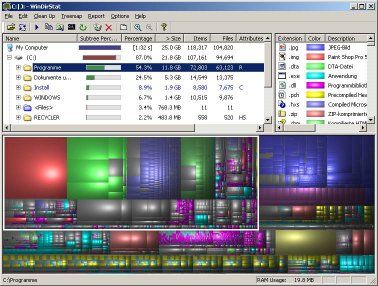 You can now select folders and a white border will appear around the disk usage of the whole folder. Every file is represented by a rectangle so you can easily spot big files. Personally, I deleted lots of gigabytes of unnecessary files and can recommend this program to everyone.
This program shows the disk space usage of a partition clearly arranged as you can see in the following image:
Sunday, 31 August 2014
Arduino, ATmega or ATtiny: monitor supply voltage
(Deutsche Version)
If you supply your Arduino or ATmega/ATtiny using a battery you might want to be warned, when the battery is almost empty so you can replace it. To do this you can monitor the supply voltage. If it drops below a defined threshold you can for example turn on a LED to be warned.
Monitoring the voltage can be done without any additional hardware by using the microcontrollers analog digital converter. As you might know, the value of the ADC is calculated using the following formula:
VALUE_ADC = V_INPUT * 1023/V_REF
Now you could think: "I'll just take my supply voltage as input voltage for the ADC" but that won't work since the supply voltage is also used as reference voltage. The value of the ADC would always be 1023.
But there is a trick: every microcontroller generates an internal reference voltage, the so called "bandgap voltage" V_BG. At the ATmega328 which is used in die Arduino Uno, the bandgap voltage is 1.1V. You can use this voltage as input für your ADC.
With V_INPUT = V_BG and V_REF = V_CC you get:
VALUE_ADC = V_BG * 1023/V_CC
or:
V_CC = V_BG * 1023/VALUE_ADC
With V_BG = 1100 (in mV) you get:
V_CC = 1100 * 1023/VALUE_ADC
Where V_CC is the value of your supply voltage in mV.
The code for the Arduino Uni is:
In loop() the measurement is started by setting the bit ADSC. When it's finished (bit ADSC is cleared) the result of the conversion is read from the registers ADCL (lower 8 bits) and ADCH (upper 2 bits) and merged to a 10-bit-result. Using this result, the supply voltage is calculated. If it is uner 5V, the LED is turned on.
This method works with every ATmega oder ATtiny. Depending on the µC you might have to set different bits in the registers of the ADC. Check the datasheet of your microcontroller.
If you supply your Arduino or ATmega/ATtiny using a battery you might want to be warned, when the battery is almost empty so you can replace it. To do this you can monitor the supply voltage. If it drops below a defined threshold you can for example turn on a LED to be warned.
Monitoring the voltage can be done without any additional hardware by using the microcontrollers analog digital converter. As you might know, the value of the ADC is calculated using the following formula:
VALUE_ADC = V_INPUT * 1023/V_REF
Now you could think: "I'll just take my supply voltage as input voltage for the ADC" but that won't work since the supply voltage is also used as reference voltage. The value of the ADC would always be 1023.
But there is a trick: every microcontroller generates an internal reference voltage, the so called "bandgap voltage" V_BG. At the ATmega328 which is used in die Arduino Uno, the bandgap voltage is 1.1V. You can use this voltage as input für your ADC.
With V_INPUT = V_BG and V_REF = V_CC you get:
VALUE_ADC = V_BG * 1023/V_CC
or:
V_CC = V_BG * 1023/VALUE_ADC
With V_BG = 1100 (in mV) you get:
V_CC = 1100 * 1023/VALUE_ADC
Where V_CC is the value of your supply voltage in mV.
The code for the Arduino Uni is:
int led = 13;  //pin of the LED
int adc_low, adc_high;  //buffer for the results of the ADC
long adc_result;  //10bit result of measurement of ADC
long vcc;  //supply voltage

void setup() {
  pinMode(led, OUTPUT);

  ADMUX |= (1<<REFS0); //VCC as reference for ADC
  ADMUX |= (1<<MUX3) | (1<<MUX2) | (1<<MUX1);  //1.1V bandgap voltage as input of ADC
  delay(10);  //wait until reference voltage is set
  ADCSRA |= (1<<ADEN);   //enable ADC
}

// the loop routine runs over and over again forever:
void loop() {
  ADCSRA |= (1<<ADSC);  //start measurement

  while (bitRead(ADCSRA, ADSC));  //wait until measurement is completed
  //buffer results. Important: read ADCL first!
  adc_low = ADCL;
  adc_high = ADCH;

  adc_result = (adc_high<<8) | adc_low; //10bit result
  vcc = 1125300L / adc_result;  //calculate supply voltage in mV (1100mV * 1023 = 1125300)

  //if supply voltage is lower then 5V
  if (vcc < 5000)
  {
    digitalWrite(led, HIGH);  //turn on LED
  }

  else
  {
    digitalWrite(led, LOW);  //turn of LED
  }

  delay(500);
}
In setup()-function the ADC is configured to use the supply voltage V_CC als referenz and the bandgap voltage V_BG as input. Then the ADC is enabled.
In loop() the measurement is started by setting the bit ADSC. When it's finished (bit ADSC is cleared) the result of the conversion is read from the registers ADCL (lower 8 bits) and ADCH (upper 2 bits) and merged to a 10-bit-result. Using this result, the supply voltage is calculated. If it is uner 5V, the LED is turned on.
This method works with every ATmega oder ATtiny. Depending on the µC you might have to set different bits in the registers of the ADC. Check the datasheet of your microcontroller.
Wednesday, 20 August 2014
ATmega - measure the soil humidity
(Deutsche Version) Today, I want to present a humidity sensor. The basic idea is to measure the soil humidity at plants to know when you have to water the plants.
To construct the sensor, you don't need much stuff. I used a small piece of stripboard, two nails and some pin strips. The sensor looks like this:
 The next step is to measure the resistivity in between the two nails (when the sensor is in the earth) and then you can estimate the soil humidity. The electrical wiring is the following:
 If the earth is humid, the sensor conducts well, therefore the ATmega measures a high voltage, if the earth is dry, the measured voltage is small. You can now think about putting units on the axis, in my opinion, it is sufficient to simply plot the "humidity" from 0 to 5 V and then check the voltage which corresponds to dry earth which has to be watered. This can now be displayed by an LED or by sending an automatic e-mail.
To construct the sensor, you don't need much stuff. I used a small piece of stripboard, two nails and some pin strips. The sensor looks like this:
Monday, 9 June 2014
BH1750FVI Light Sensor
(Deutsche Version) For my home automation project I want to control my shutters automatically. The shutters should be closed when the sun is shining into my room to keep the heat outside. To detect the sun I want to measure light intensity and temperature.
To measure the light intensity I use a BH1750FVI light sensor which you can buy at Ebay for about 2€.
The sensor measures the light intensity/brightness between 0 and 65535 lx and sends the measured value via I2C to your microcontroller. Measurement can be done recurring or non-recurring with a resolution of 0.5, 1 or 4 lx.
Controlling the sensor and reading the values can be done very easy using Arduino and the library created by Christopher Laws.
After connecting the sensor to 5V supply voltage and the SDA/SCL pins of your Arduino, ATmega or ATtiny you can flash the example code provided with the library:
To measure the light intensity I use a BH1750FVI light sensor which you can buy at Ebay for about 2€.
The sensor measures the light intensity/brightness between 0 and 65535 lx and sends the measured value via I2C to your microcontroller. Measurement can be done recurring or non-recurring with a resolution of 0.5, 1 or 4 lx.
Controlling the sensor and reading the values can be done very easy using Arduino and the library created by Christopher Laws.
After connecting the sensor to 5V supply voltage and the SDA/SCL pins of your Arduino, ATmega or ATtiny you can flash the example code provided with the library:
#include <Wire.h>
#include <BH1750.h>

BH1750 lightMeter;

void setup(){
  Serial.begin(9600);
  lightMeter.begin();
  Serial.println("Running...");
}


void loop() {
  uint16_t lux = lightMeter.readLightLevel();
  Serial.print("Light: ");
  Serial.print(lux);
  Serial.println(" lx");
  delay(1000);
}
The code is self-explanatory. In setup() the sensor is initliazed using the begin()-function. If you want to you can set the measurement mode here by providing different parameters. See the h-file of the library for further information. After the initialization the light intensity/brightness in Lux can read using the readLightLevel() command. And that's it, there's nothing more to say ;)
Subscribe to:
Posts (Atom)